What is the Filter feature?
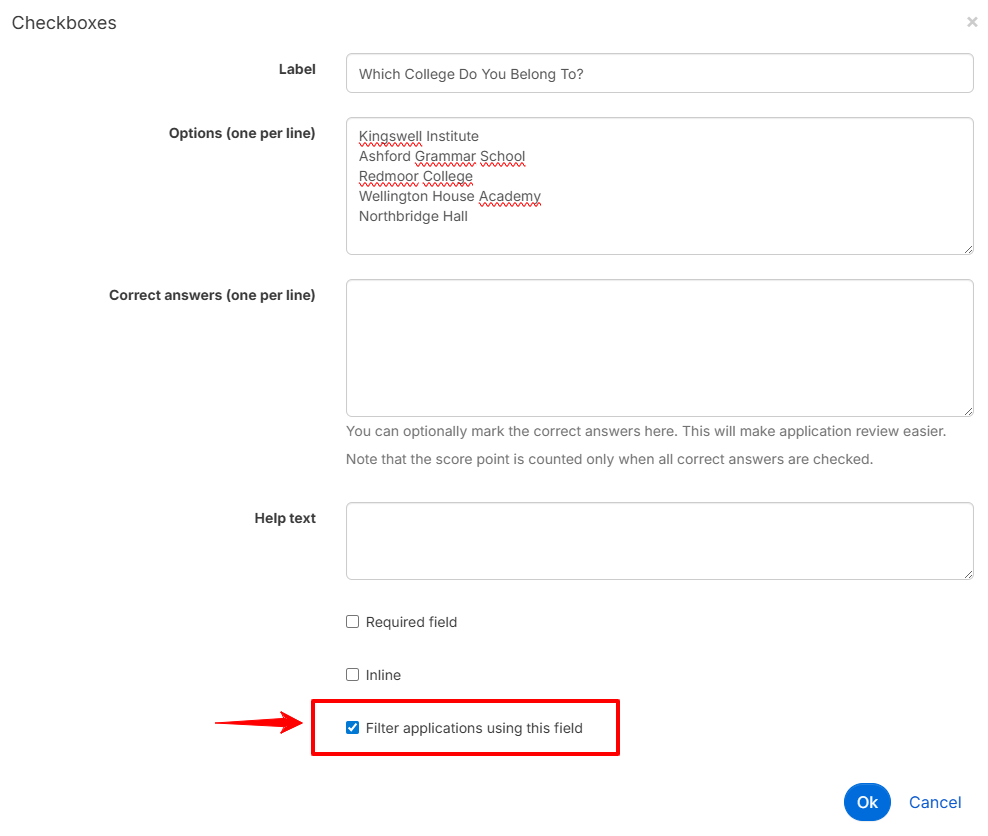
When creating or editing certain types of form fields, a Filter applications using this field option appears at the bottom of the field configuration panel. Checking this box tells the platform to use the answer to that question when deciding which reviewer should receive the application.
This option is available exclusively for the following three field types:
- Checkboxes
- Radio buttons
- Select box
In the Reviewers step of the badge setup, you can then define routing rules: depending on the value selected by the applicant, the application is automatically forwarded to the designated person or group.
Enabling the filter on a field
- Step 1: Open the field configuration
- Step 2: Check 'Filter application using this field'
- Step 3: Save by clicking OK
- Step 4: Go to the Reviewers step of the badge application
Setting up routing rules
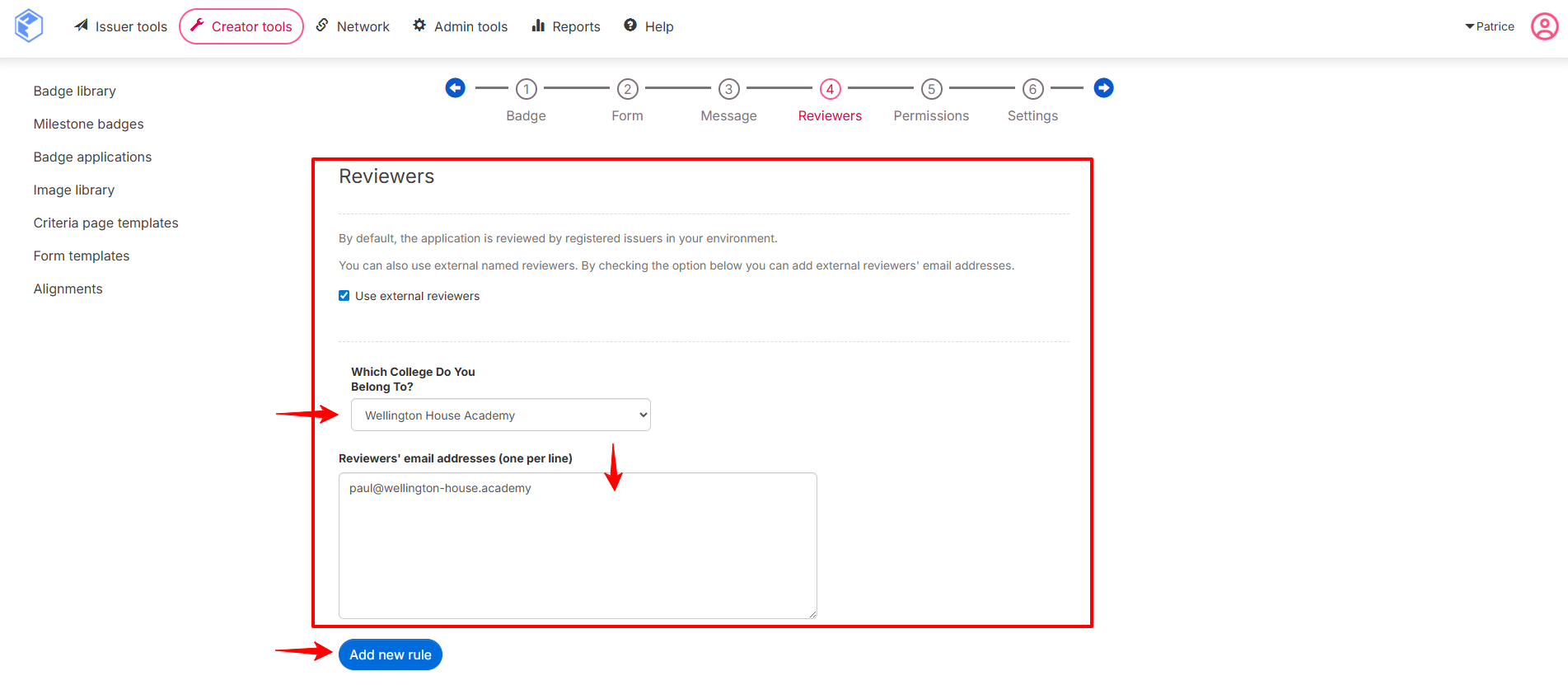
In the Reviewers tab, enable the Use external reviewers option, then create one rule per desired answer combination. Each rule links:
- an answer value (e.g. "Wellington House Academy"),
- one or more email addresses of designated reviewers.
Click Add new rule to add as many rules as needed.
Combining multiple filtered fields
Several fields (of type checkboxes, radio buttons, or select box) can be enabled as filters at the same time. Rules can then target combinations of answers (AND logic) for even more precise routing.
Was this article helpful?
That’s Great!
Thank you for your feedback
Sorry! We couldn't be helpful
Thank you for your feedback
Feedback sent
We appreciate your effort and will try to fix the article