TABLE OF CONTENTS
About LTI
Learning Tools Interoperability (LTI) is a standard developed by 1EdTech Consortium, which allows courseware and learning tools from different vendors to be launched within a learning platform, often an LMS.
LTI Integration provides a link between an LTI supported LMS and your account in Factory. Our customers can use LTI 1.3 integration with Brightspace. LTI integration requires a Pro subscription level. LTI 1.3 has a more straightforward upgrade path than other versions and the full support and endorsement of major platform providers.
Note:
This integration can also be used for the CanCred Factory platform, powered by Open Badge Factory technology. Simply use the host name factory.cancred.ca instead of openbadgefactory.com
Connecting Factory to Brightspace
Step 1: Register a new LTI 1.3 App
Log in to Factory and go to Admin Tools > LTI. Choose Version: 1.3 and LMS: Brightspace. In this page you can see configuration values you need to connect the tool to Brightspace.
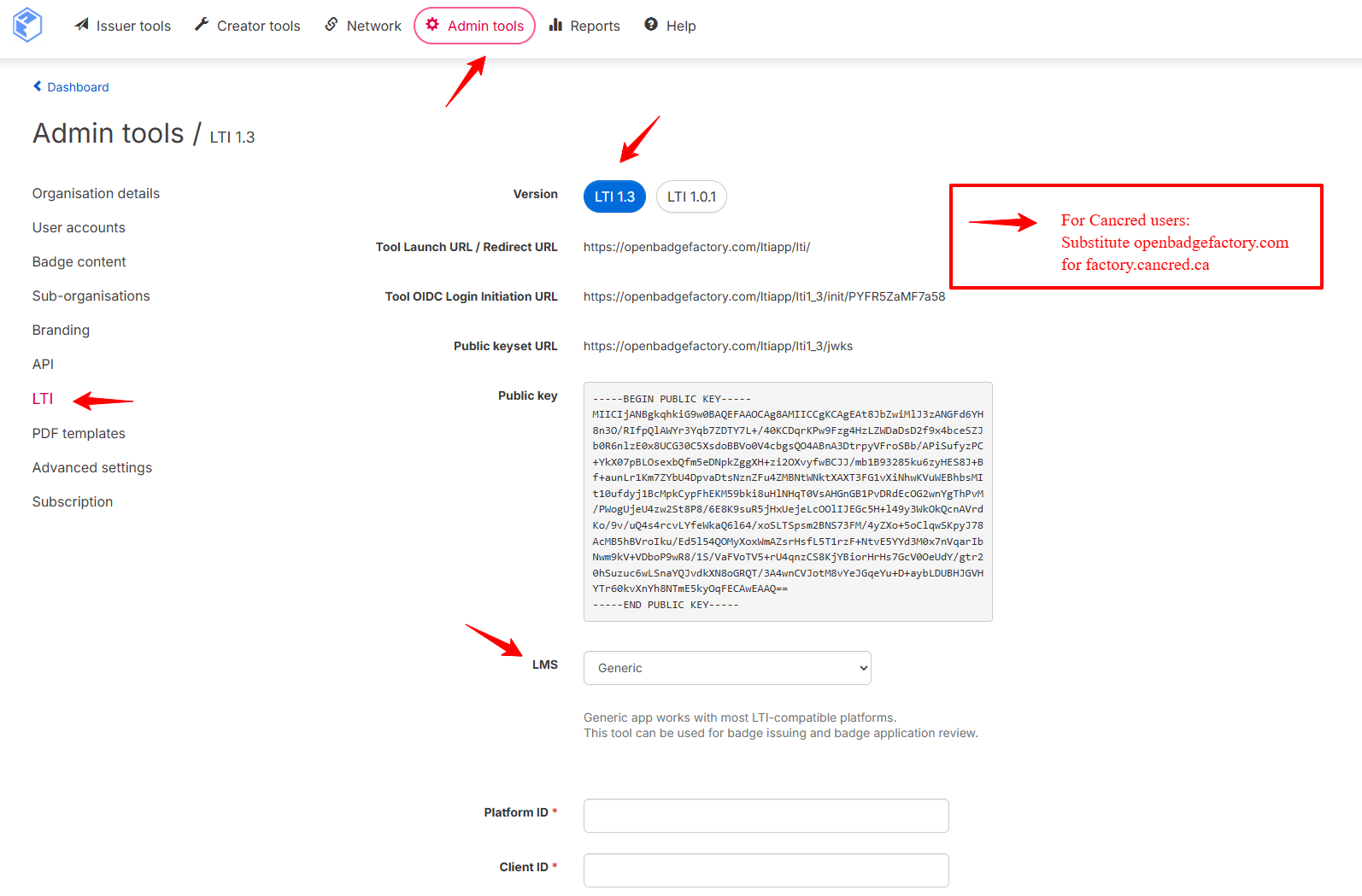
CanCred Factory users: Substitute
factory.cancred.caforopenbadgefactory.com
Then, in Brightspace:
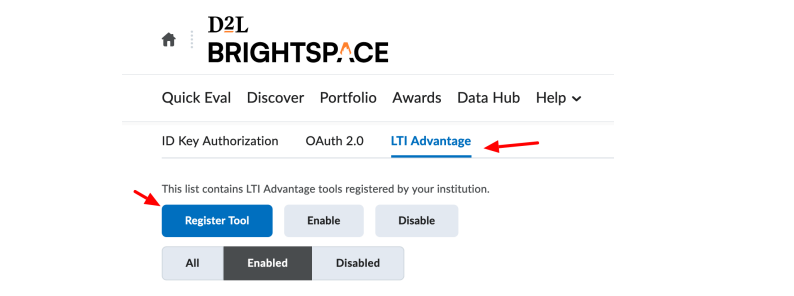
- Go to Admin Tools > Manage Extensibility > LTI Advantage
- Click Register Tool
3. Choose Standard method
4. Set tool Enabled
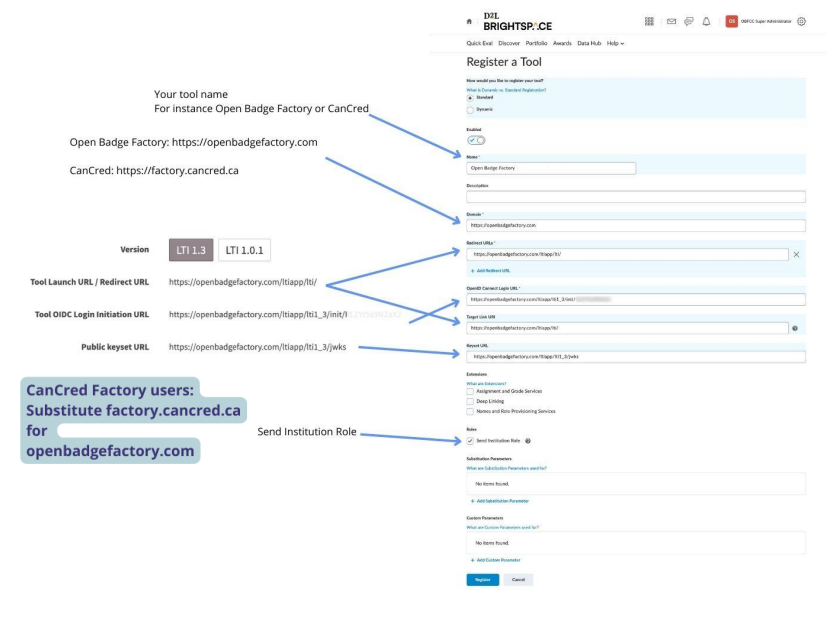
5. Input a descriptive value for tool Name
6. Input the tool Domain:
- Open Badge Factory:
https://openbadgefactory.com - CanCred Factory:
https://factory.cancred.ca
7. From Factory, copy the following values into the Brightspace settings form:
| Factory field | Brightspace field |
|---|---|
| Tool Launch URL / Redirect URL | Redirect URLs |
| Tool OIDC Login Initiation URL | OpenID Connect Login URL |
| Tool Launch URL / Redirect URL | Target Link URI |
| Public keyset URL | Keyset URL |
8. Under Roles, enable Send Institution Role
9. Click Register
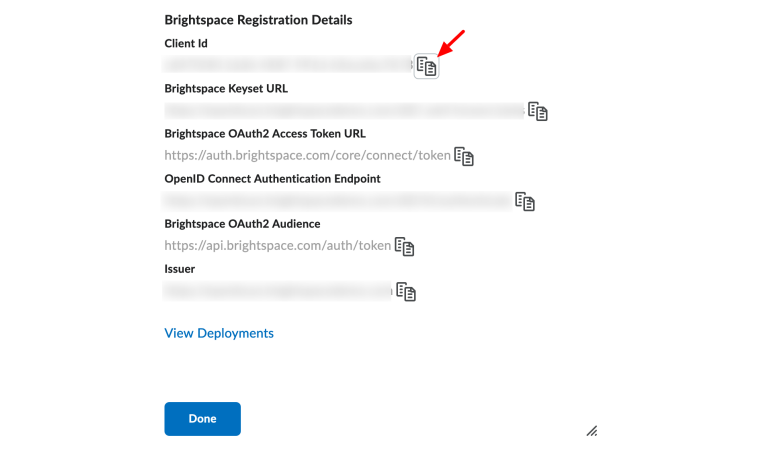
10. A popup opens with the registration details. Copy the Client Id value for later use.
Step 2: Create Tool Deployment
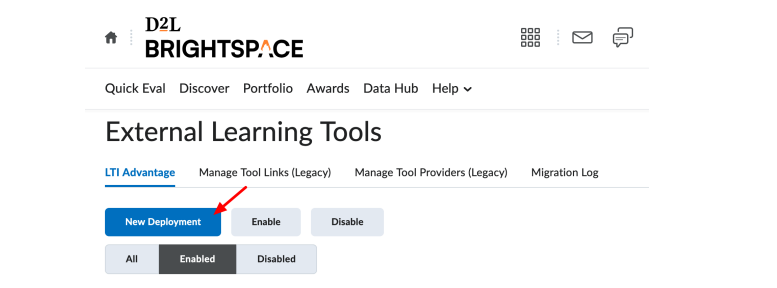
1. In Brightspace, go to Admin Tools > External Learning Tools
2. Click New Deployment
3. Under Tool, select the tool registered in Step 1
4. Input a descriptive value for deployment Name
5. Under Security Settings, enable Org Unit Information and all values in User Information
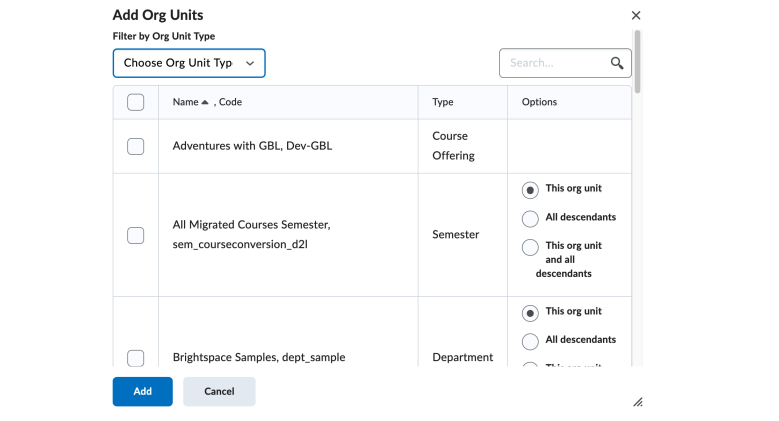
6. Click Add Org Units and select all units (Course Offering, Semester, Department, Organizations, etc.) where this tool should be available. If applicable, you can select "This org unit and all descendants"
7. Click Create Deployment
8 A popup opens with the deployment details. Copy the Deployment Id value for later use.

Step 3: Register a new OAuth 2.0 application
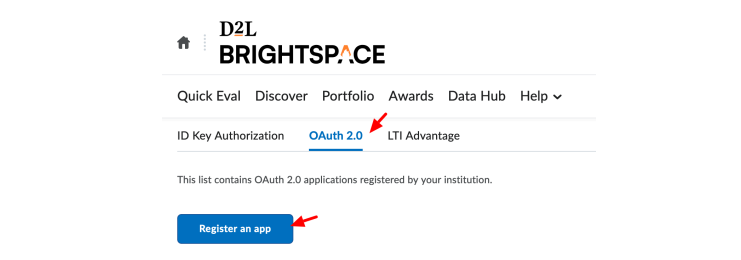
1. In Brightspace, go to Admin Tools > Manage Extensibility > OAuth 2.0
2. Click Register an app
3. Input a descriptive Application Name (e.g. Open Badge Factory or CanCred Factory)
4. Set the Redirect URI:
- Open Badge Factory:
https://openbadgefactory.com/ltiapp/lti/auth - CanCred Factory:
https://factory.cancred.ca/ltiapp/lti/auth
5. Input Scope => core:*:*
6. Enable Prompt for user consent and Enable refresh tokens
7. Click Register
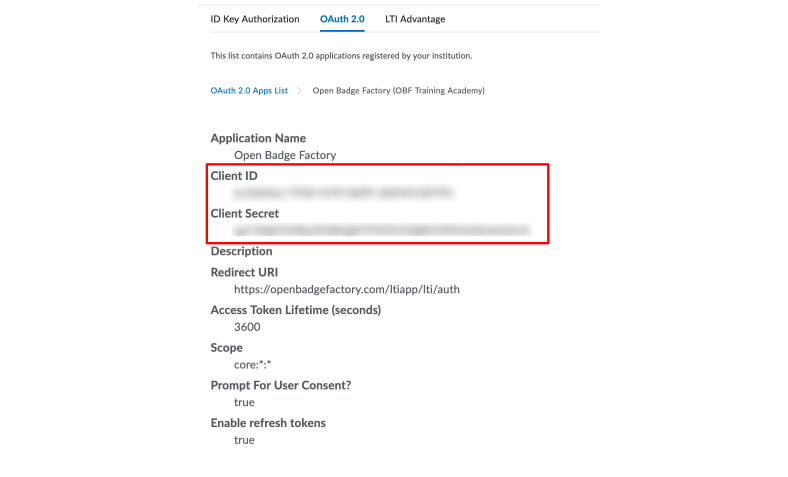
8. Copy the Client ID and Client Secret values for later use.
Step 4: Add Tool Deployment to Factory
- In Factory, input the following values into the LTI settings form:
| Factory field | Value source |
|---|---|
| Brightspace base URL | Your Brightspace installation URL |
| Client ID | Client ID created in Step 1 |
| Deployment ID | Deployment ID created in Step 2 |
| App Client ID | OAuth2 Client ID created in Step 3 |
| App Client Secret | OAuth2 Client Secret created in Step 3 |
- Click "Add"
Usage
Add LTI Link to Courses
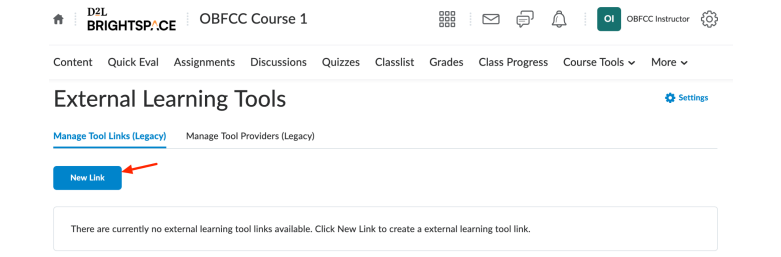
1. Go to a Course, click Course Tools > Course Admin > External Learning Tools
2. Click New Link
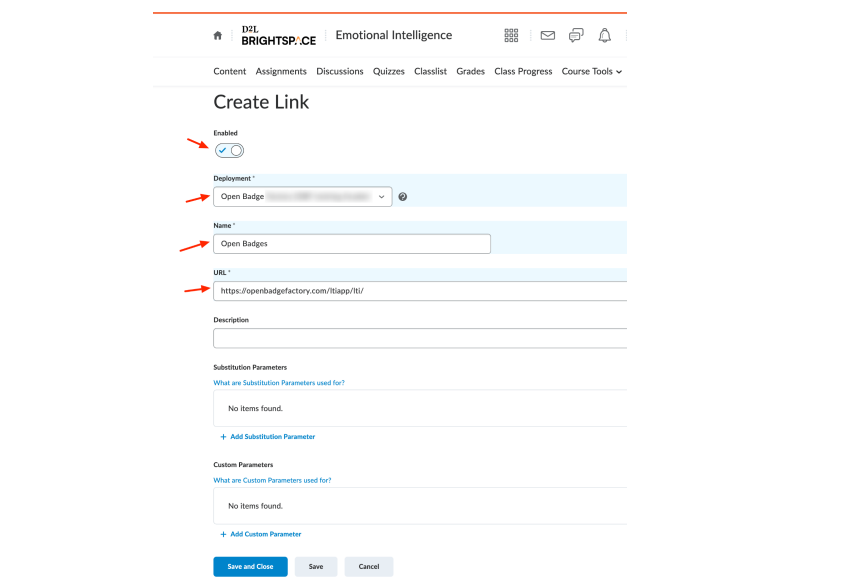
3. Select the deployment created in Step 2
4. Input a descriptive link Name (e.g.: Open Badges)
5. From Factory, copy the Tool Launch URL / Redirect URL into the URL field:
- Open Badge Factory:
https://openbadgefactory.com/ltiapp/lti/ - CanCred Factory:
https://factory.cancred.ca/ltiapp/lti/
6. Click Save and Close
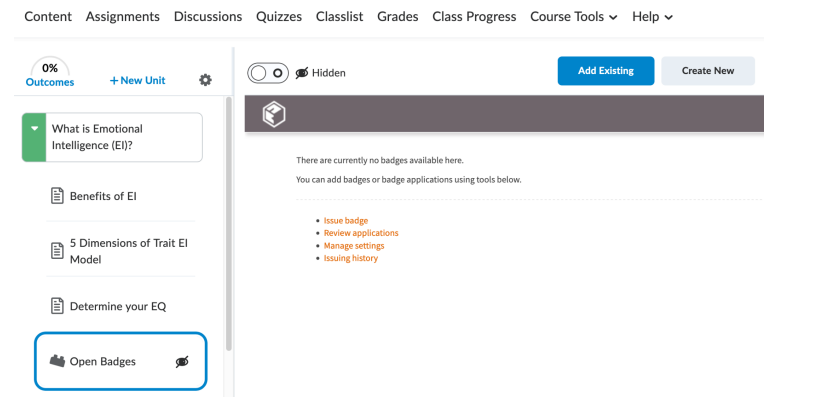
7. Click the Content link in the top navigation
8. Choose a Module and from the Existing Activities dropdown, select External Learning Tools
9. In the item type drop-down menu, select External Tool
10. Select the Open Badge Factory or CanCred Factory external tool and review the settings
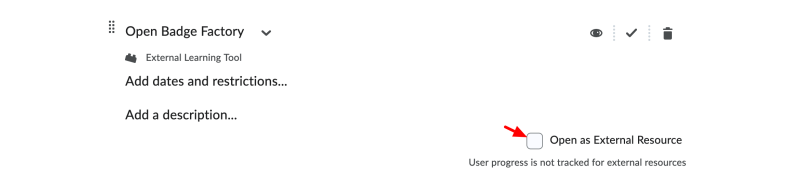
Important: Some browsers and/or Brightspace may not accept iframes. You may have to edit your course link property to "Open as External Resource".
Issuing a badge to course participants
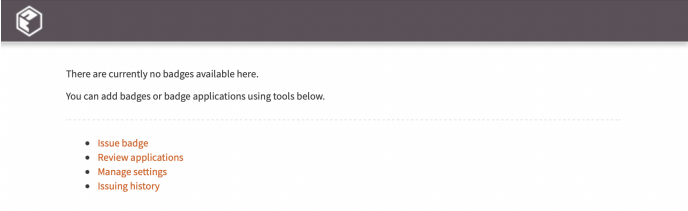
1. In Brightspace, from your Course, open the External Learning Tool link created in the previous step
2. Click Issue badge
3. Select the badge you want to issue
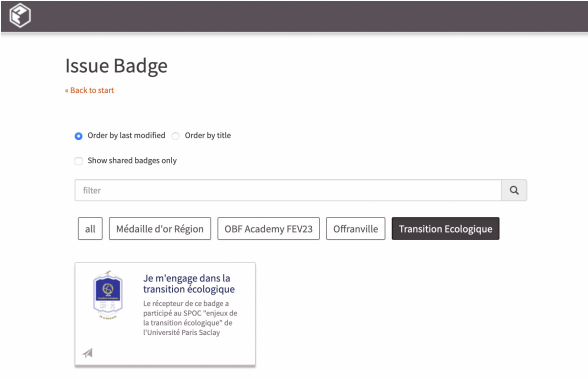
4. Define all your badge details
5. Select your students
6. Edit your email message
7. Issue your badge
Issuing a badge automatically on course completion or score
1. In Brightspace, from your Course, open the External Learning Tool link created in the previous step, click Manage settings
2. Click Add course badge and pick the badge to issue
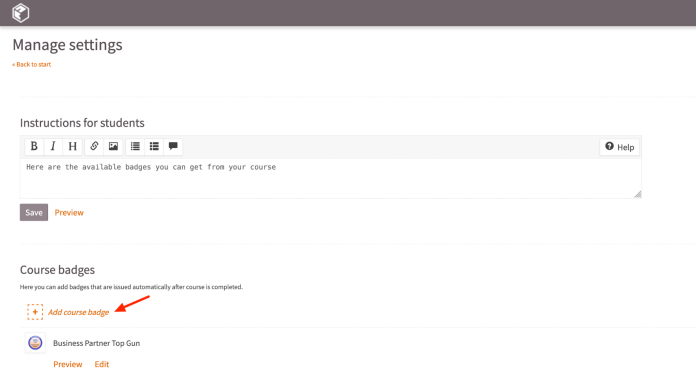
3. Click Edit on the badge
4. Choose if the badge is issued to all course members after the course completion or based on final score
5. Input the email message that is sent when the badge is issued
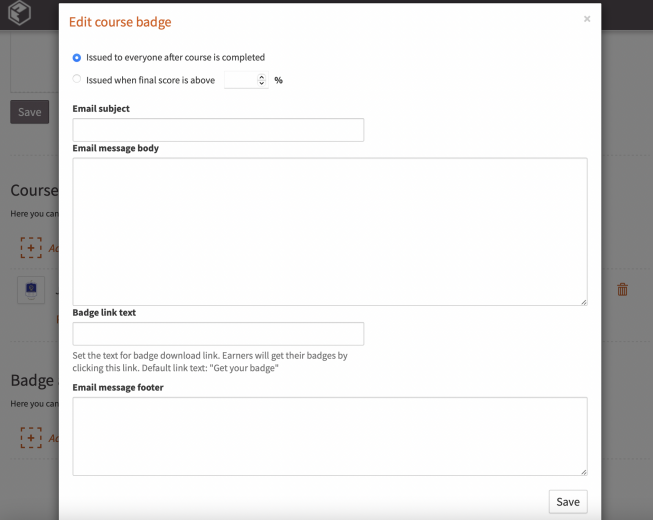
Note: Course badges are issued periodically once a day after course completions are checked.
Adding badge applications for a course
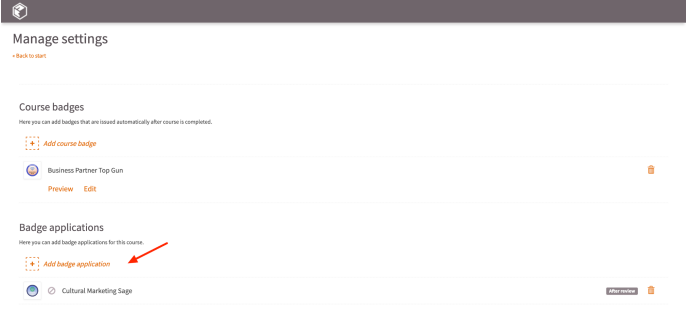
- In Brightspace, from your Course, open the External Learning Tool link created in the previous step, click Manage settings
- Click Add badge application
- Select the badge application you want to add to the course
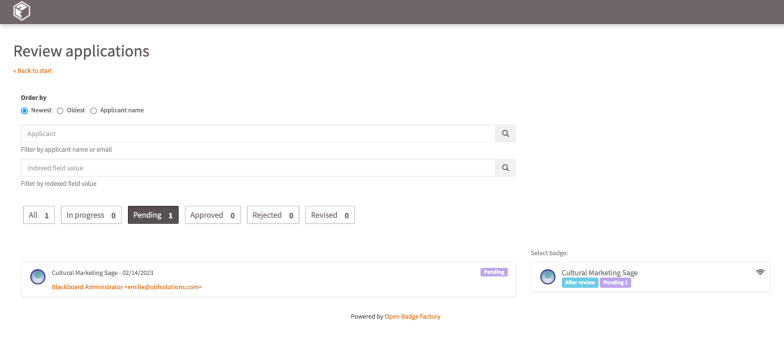
Reviewing badge applications
- In the LTI tool, click Manage settings
- Click Review applications
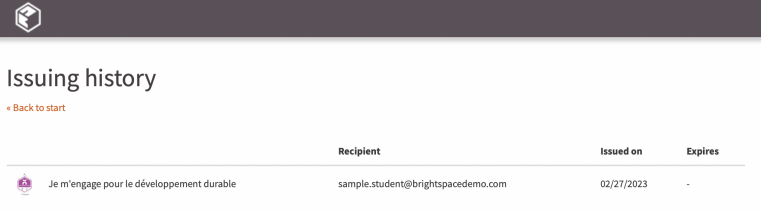
Issuing history
You can get your issuing history. From your Course, go to Tools > Open Badge Factory > Issuing history.
Student view
Students can view course badges and badge applications from the course via Tools > Open Badge Factory.

Badge Issuance Behaviour
Automatic issuance (LTI rule-based)
Badge issuance via the Blackboard LTI integration is not immediate. Issuance rules are checked once per night (nightly check). This means there may be a delay of up to 24 hours between a course completion and the badge being issued.
Manual issuance
Manual issuance works the same way as within the OBF interface. An email queue is in use, meaning issuance may not be instant if the volume exceeds the daily quota.
Deduplication rule
A badge will not be issued if the recipient's email address already holds one. This behaviour is systematic and acts as a built-in protection against duplicates.
Was this article helpful?
That’s Great!
Thank you for your feedback
Sorry! We couldn't be helpful
Thank you for your feedback
Feedback sent
We appreciate your effort and will try to fix the article