This feature allows users with a Creator role to configure the quiz as part of the badge application process. In particular, it makes it easier to examine badge applications, especially when a knowledge test is involved.
'Quiz parameters' are available for the “Checkboxes” and “Radio buttons” fields when a badge application form is created.
Checkboxes
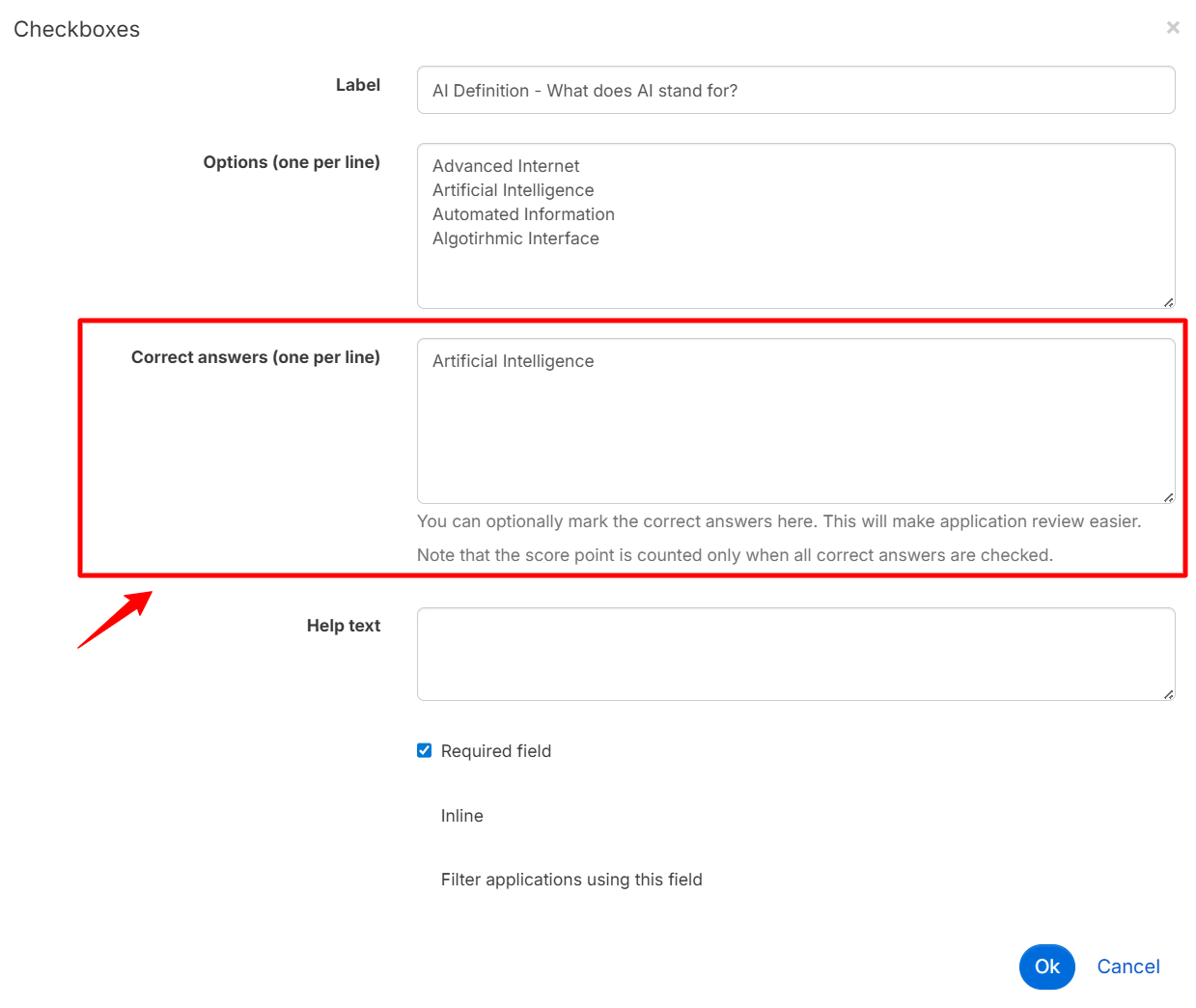
Creating a quiz using Checkboxes is preferable if you want to give the applicant the option of ticking several answers. Enter the title of your question in the ‘Label’ field and specify the answer choices in the ‘Options’ field. Give only one choice per line.
In the ‘Correct answers’ field, specify the answer(s) expected (also one per line). NB! Note that you must use the same words between the answer choice (in Option) and the correct answer (in Correct answers).
You can add a help text to your question by entering it in the ‘Help text’ field.
You can define whether the answer to this question is compulsory by ticking the ‘Required field’ box, choose an inline presentation of the options and answers by ticking the ‘Inline’ box, and finally, filter the sending of the badge application to particular reviewers on the basis of this question by ticking the ‘Filter applications using this field’ box.
Radio buttons
'Radio Buttons' works in the same way as Checkboxes, except that there is only one possible correct answer.
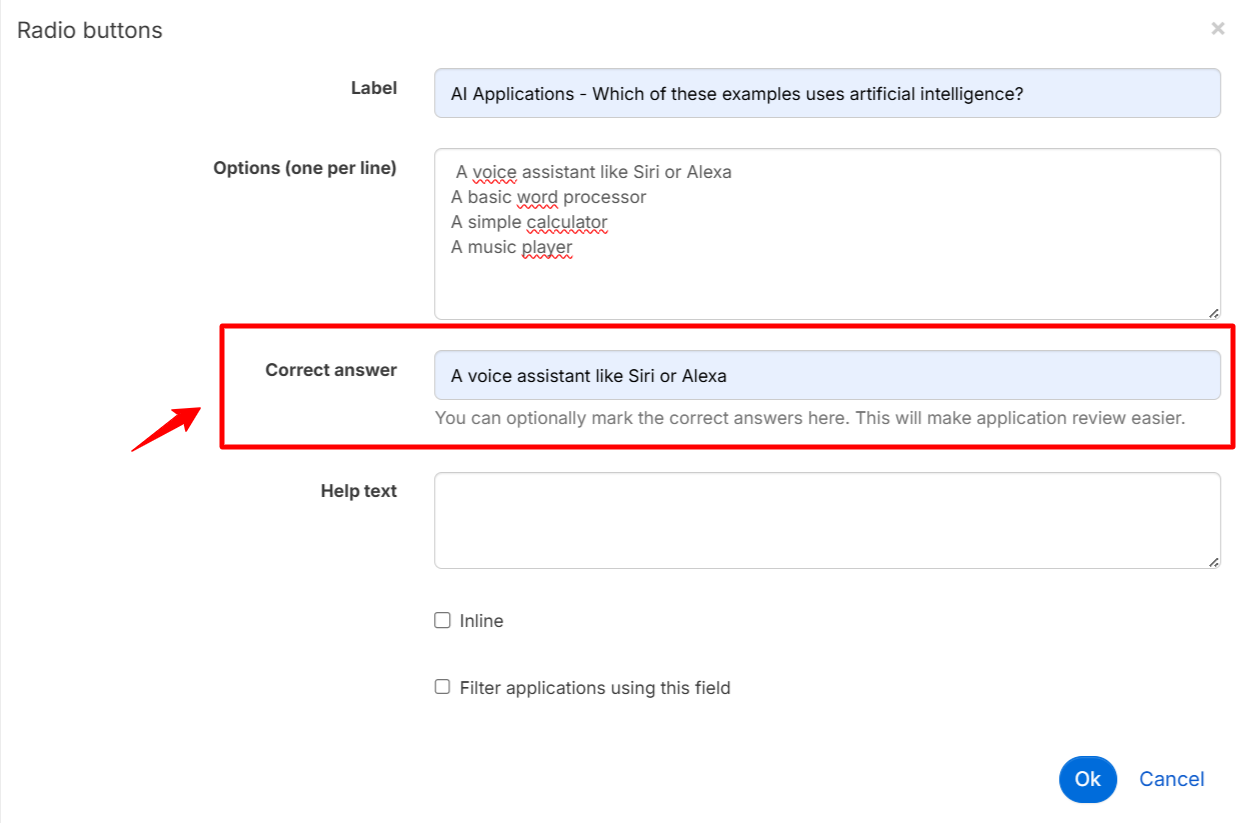
Please note that you cannot specify here whether this question is required or optional.
Quizzes and Badge Application Validation
Manual Review of Quiz Responses
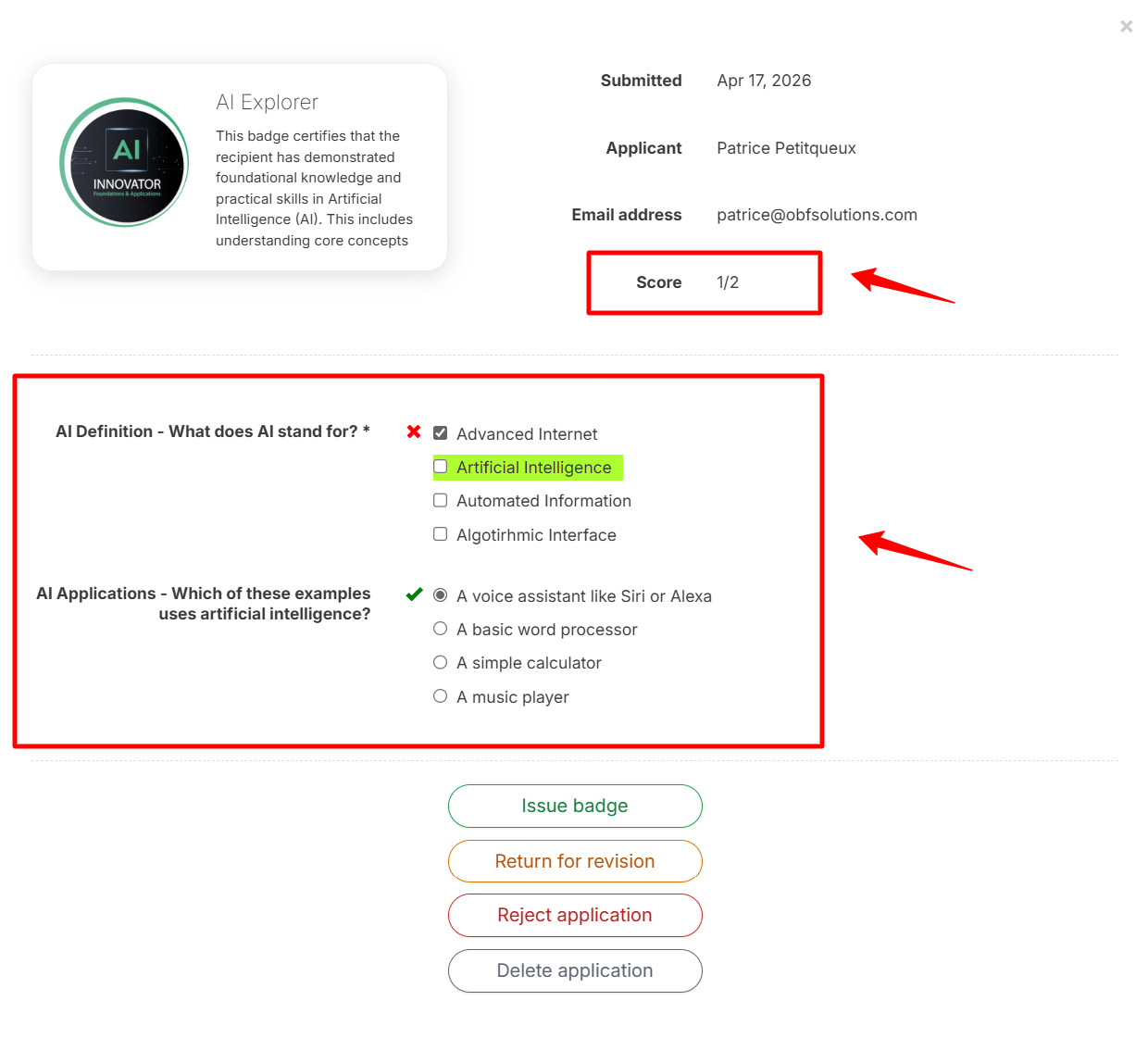
To review a badge application that includes a quiz and check the responses, you must select the "After review" approval method when creating the application form. To review the responses, follow the standard procedure: Issuer Tools / Review applications, then click on the application you wish to review.
The applicant's score is displayed at the top of the window, below the email address. When creating the form, you can add instructions to remind issuers of the minimum score required to validate the application.
Automatic Grading and Automatic Issuance (Pro level only)
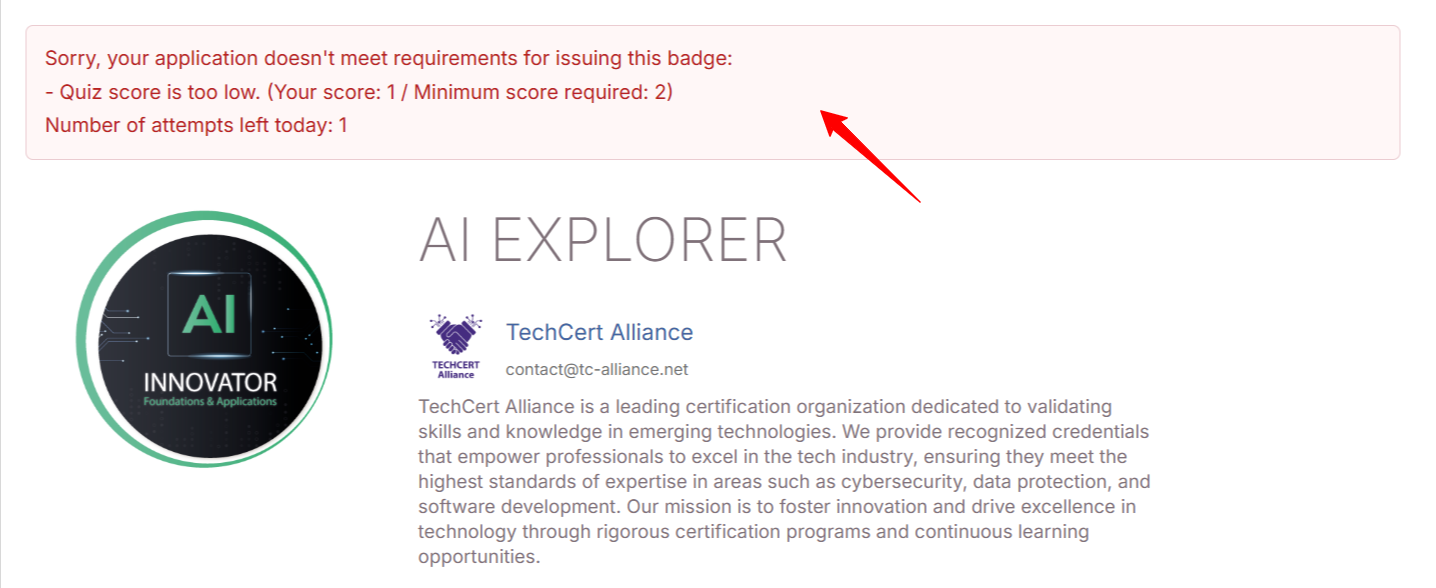
At the Pro level, you can combine automatic badge issuance with automatic quiz grading. If the required score is achieved (as defined by the badge application creator), the badge is automatically issued.
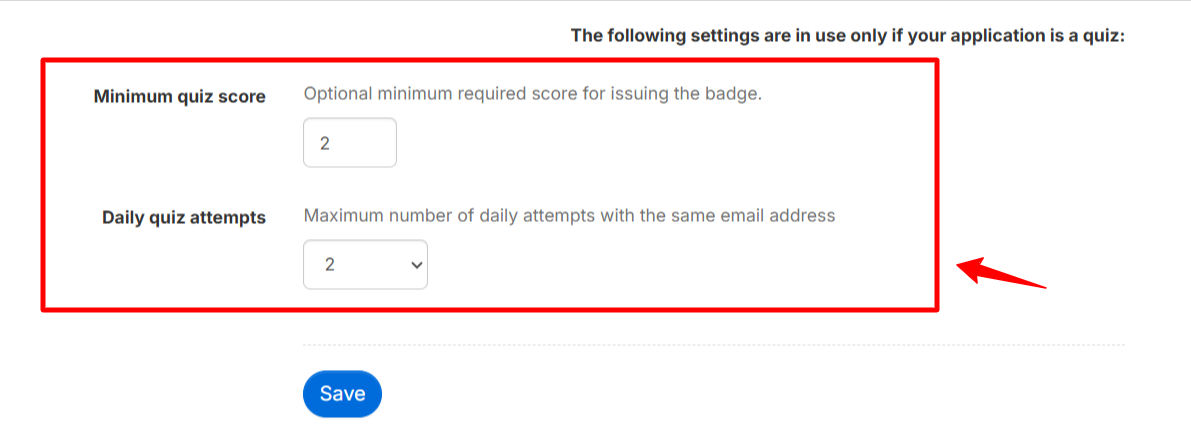
In case of failure, the applicant can resubmit their application within the limit of the number of attempts defined when creating the form.
Special case
If an applicant has already passed the quiz and earned the badge, any subsequent application will automatically result in badge issuance, even if they fail the quiz on this second attempt. Since the applicant has already demonstrated that they meet the earning criteria through their initial success, they retain this qualification. This allows, for example, reissuing a badge that was accidentally deleted.
Was this article helpful?
That’s Great!
Thank you for your feedback
Sorry! We couldn't be helpful
Thank you for your feedback
Feedback sent
We appreciate your effort and will try to fix the article