OBF > Admin Tools > Advanced settings
In this section, you can configure certain features of the Pro service level.
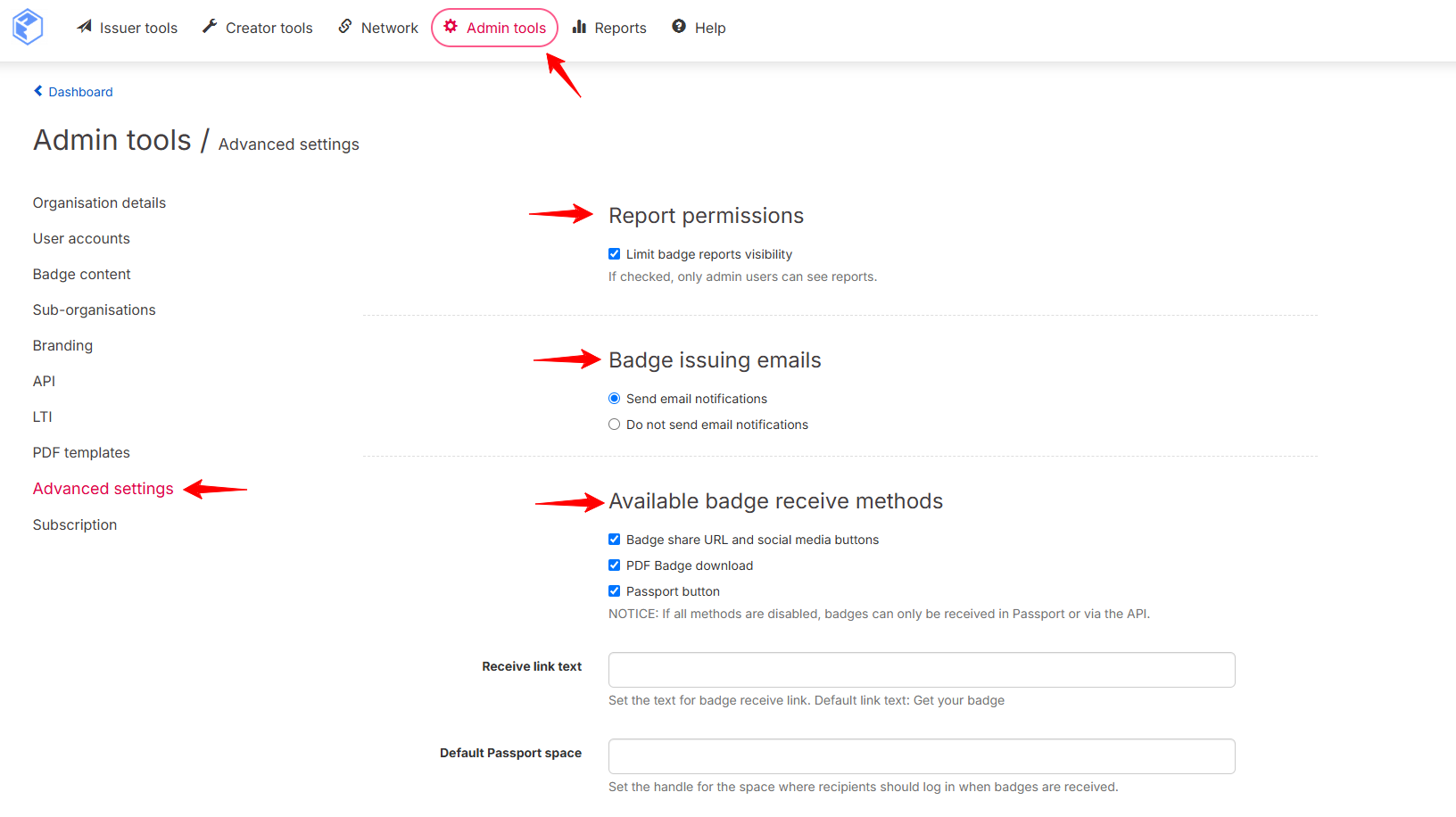
Report Permissions
The Limit badge reports visibility checkbox restricts report access to admin users only. When unchecked, all users with access to the badge can view its reports.
Badge Issuing Emails
Choose whether recipients receive an email notification when a badge is issued to them:
- Send email notifications — recipients are notified by email upon issuance (default)
- Do not send email notifications — badges are issued silently, with no email sent to the recipient
Available Badge Receive Methods
Control how recipients can access their badge after issuance. Three methods can be enabled independently:
- Badge share URL and social media buttons — recipients can share their badge via a direct link or social platforms
- PDF Badge download — recipients can download their badge as a PDF file
- Passport button — show or hide the button that allows recipients to join Open Badge Passport directly from the badge receive page
Note: If all three methods are disabled, badges can still be received through Open Badge Passport or via the API.
Receive Link Text
Customize the call-to-action text displayed on the badge receive link. If left at default, the link reads Get your badge.
Default Passport Space
Enter the unique identifier of the Passport space where recipients will be directed when receiving their badge. The unique identifier is set when the space is created and is used to build the space's URL — note that it cannot be modified afterwards. You can find it in the Branding section of your space settings. This ensures recipients land in the correct space upon badge acceptance.
SMTP Server
If you want to use your own SMTP server for badge issuing messages, set connection details here.
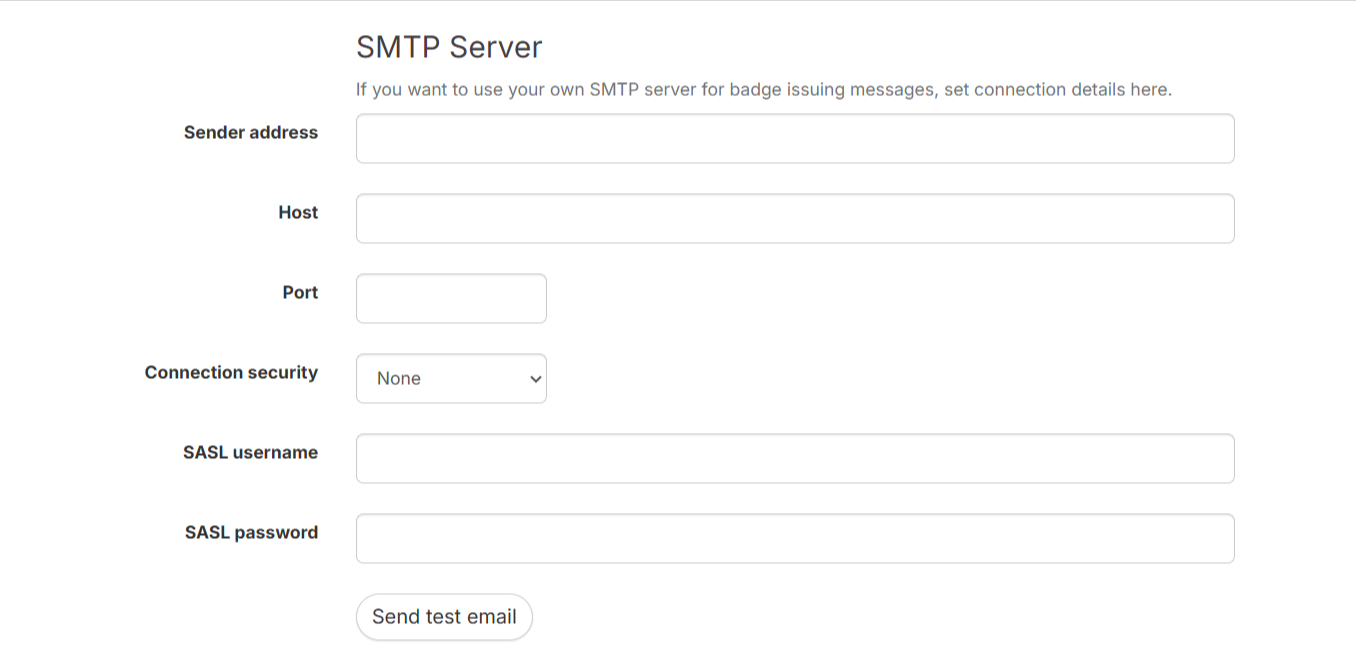
If you need our API address, openbadgefactory.com's IP address is: 94.237.31.176
External Alignments
Connect your badges to external services and competency frameworks using the External Alignments section.
Dedicated Passport Server
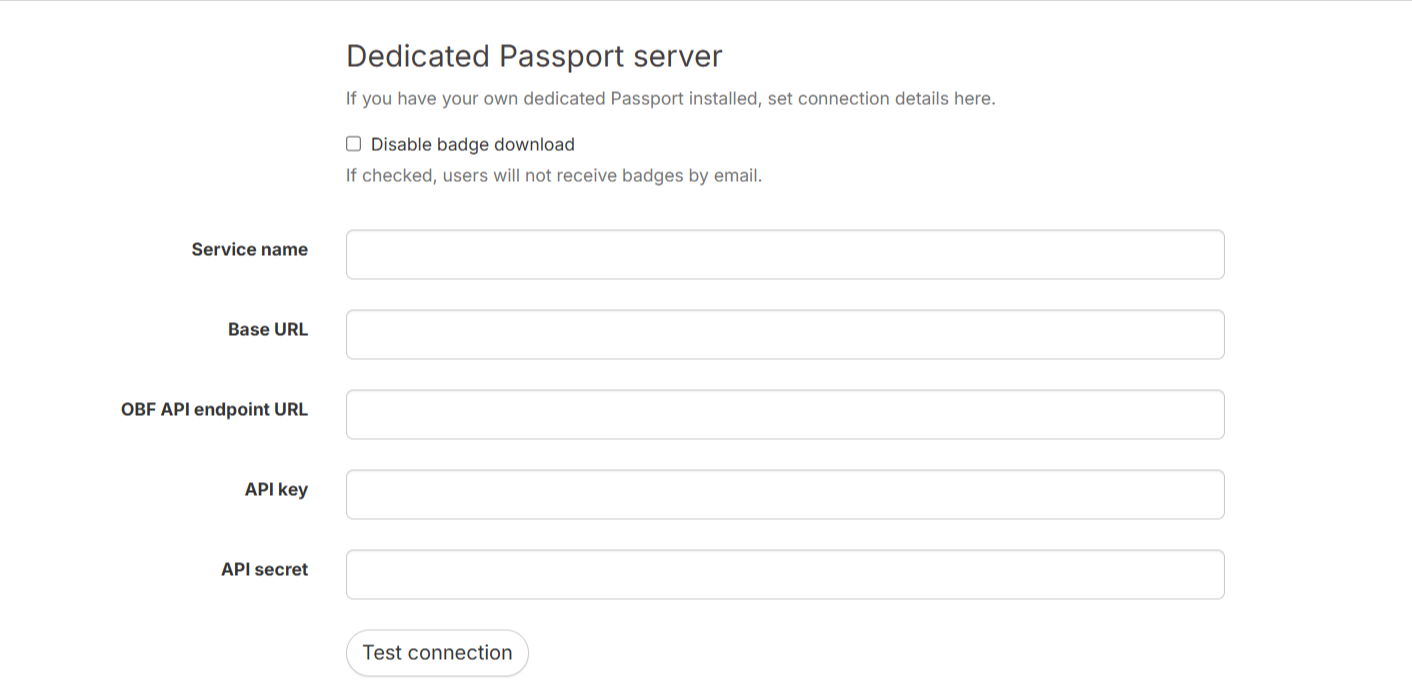
If your organization runs its own dedicated Open Badge Passport instance, use this section to configure the connection:
- Disable badge download — when checked, users will not receive badges by email
- Service name — a label identifying the Passport service
- Base URL — the root URL of your dedicated Passport instance
- OBF API endpoint URL — the API endpoint used by OBF to communicate with your Passport server
- API key / API secret — credentials used to authenticate the connection
Use the Test connection button to verify that the settings are correct before saving.
Was this article helpful?
That’s Great!
Thank you for your feedback
Sorry! We couldn't be helpful
Thank you for your feedback
Feedback sent
We appreciate your effort and will try to fix the article